iRiver H320: File Formats, Connections and Using It Today
The H320 is the 20 GB model in iRiver’s H300 family; the H340 is the 40 GB sibling. Check the model label before applying storage, accessory or firmware instructions. The H300 manual distinguishes a USB 2.0 DATA port from a separate USB 1.1 MEDIA port. (iRiver H300 Series manual, pp. 6–8, 44)
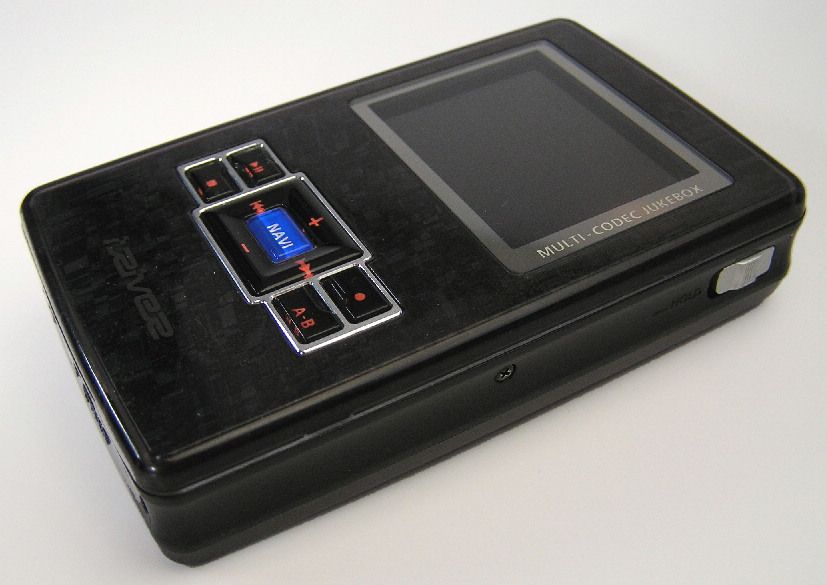
iRiver H320, with its color screen and front controls visible. Photo by Jatoo, “H320.jpg,” Wikimedia Commons, CC BY-SA 3.0.
Ports and original file transfer
Use the DATA port for ordinary computer storage access. The manual describes the player as a local disk when connected to a computer. Its period instructions say Windows Me/2000/XP and Mac OS 9/OS X did not need a separate driver; Windows 98 SE did. Those old requirements do not establish current Windows or macOS recognition. (H300 Series manual, pp. 12, 14–15)
- Check the rear/side labels and select the USB 2.0 DATA port, not the separate MEDIA port.
- On a period Windows 98 SE setup, install the documented driver first. For the manual’s later Windows/Mac systems, connect the USB cable and wait for the player’s local disk to appear.
- Copy supported music files to the player’s storage using the file method documented for the setup. Keep a separate original copy on the computer.
- Wait for writes to finish and use the operating system’s eject command before unplugging.
A period review describes a distinct Windows Media Player secure-transfer path through the USB 1.1 MEDIA port and contrasts it with ordinary USB 2.0 transfer through DATA. Treat that as the reviewer’s contemporary software setup—not proof of current MTP or DRM behavior. (Guru3D review)
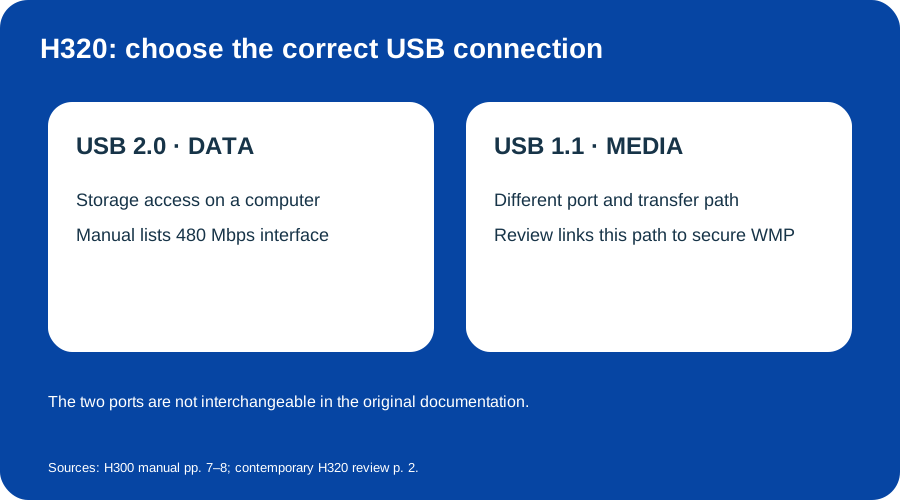
Use the H320’s DATA port for computer storage access; the manual distinguishes a separate MEDIA port. Original diagram based on the H300 manual and period review.
Stock formats and image display
The period review lists MP3, WMA, ASF and OGG for the H320’s original firmware. The H300 manual separately says the screen can display JPEG and BMP images. These are historical feature descriptions; they do not say that modern codecs, DRM services or transfer applications will work. (Guru3D review; H300 Series manual, p. 28)
Rockbox is a separate firmware path
Rockbox documents additional formats for the H320/H340 family, but those apply only after using the alternative firmware. Its 2008 installation guide has a model-region warning: the documented US-unit path requires non-US original firmware before the supported patched bootloader and permanently removes DRM support. That is a narrow historical prerequisite, not a casual troubleshooting step or evidence that a current installation will succeed. Confirm the exact region and read the Rockbox instructions before considering any firmware change; back up first. (Rockbox H320/H340 manual, pp. 11–17, 139)
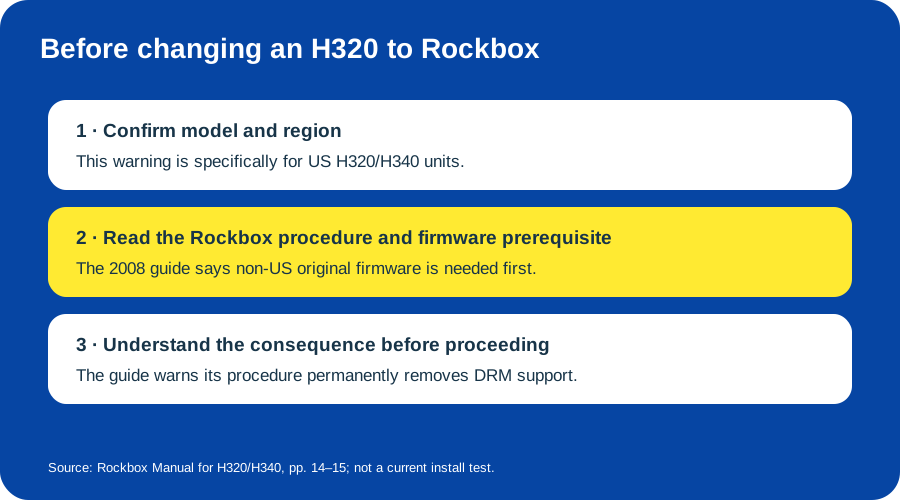
The 2008 guide describes a region-specific firmware prerequisite and warns of DRM loss. This applies to its Rockbox procedure, not ordinary stock-firmware transfers.
Present-day host recognition, current software availability, surviving hard-drive condition and battery runtime are unverified. No current computer or player was tested.
Sources & image credits
Sources
- D11-S1 H300 Series Instruction Manual — pp. 6–8, 12, 14–15, 28 and 44–45; exact H320/H340 capacity, ports, historic host procedure, image viewing and specifications.
- D11-S2 iRiver H320 20GB multi-codec jukebox — period review, format list and its distinction between DATA-port storage and MEDIA-port secure transfer.
- D11-S3 The Rockbox Manual for Iriver H320 and H340 — 2008 manual, pp. 11–17 and 139; alternative-firmware conditions, region warning and codec list.
Image credits
- D11-I-HERO — iRiver H320, with its color screen and front controls visible. Photo by Jatoo, “H320.jpg” on Wikimedia Commons, CC BY-SA 3.0. No changes.
- D11-I-USB-PORTS — H320 DATA and MEDIA port roles. Original explanatory diagram by Things To Do Your Thing; evidence: H300 Series manual, pp. 7–8; Guru3D H320 review.
- D11-I-ROCKBOX-REGION — Rockbox region-specific caution. Original explanatory diagram by Things To Do Your Thing; evidence: Rockbox H320/H340 manual, pp. 14–15.